本頁面暫無您所用語言的版本,您正在閱讀英文原文。
Knowledge base
Files missing
Three badges on an enabled extension
«Files found» means the folder is in place and the description reads. The badge «files too old» means the folder exists but the extension is of the old standard, and it will be refused at launch. «Files missing» means there is no folder with a description at all.
The skip comes without a notice
The folder was moved or renamed
The program looks for a folder by the extension's name inside the extensions folder. A folder moved elsewhere, renamed or deleted by hand is gone as far as the program is concerned.
An antivirus took the files
Protective programs sometimes move extension files into quarantine. The folder remains, the description file in it does not, and the card shows the loss.
The install was cut short
The download stopped before the folder was put in place, while the extension was already marked as enabled. Press «Install» again: the catalogue downloads and unpacks it afresh.
Outdated files are cured the same way
For the «files too old» badge the move is the same: «Install» takes the current third-standard version from the store and puts it over the old one.
How to collect evidence
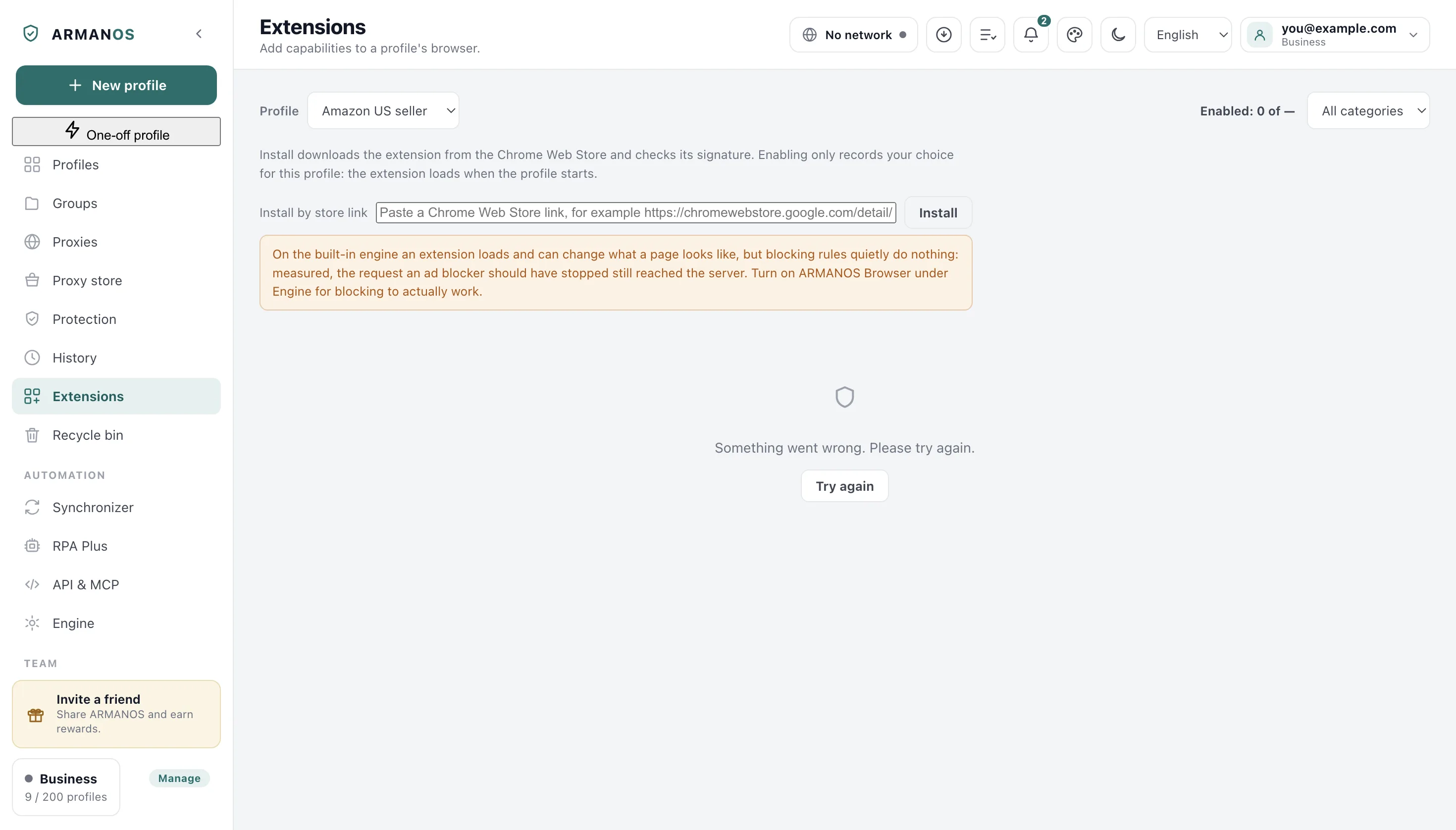
Open the extensions folder with the button on the screen and find the folder named on the card. If it is not there or has no manifest.json, press «Install».
If installing does not help, write through Help → Write to support and name the extension and the badge on its card: the report that travels with the message carries the version and the system, and the state of your extensions is not in it.
What this article does not cover
- An extension refused at launch. It has a notice and an article of its own.
- Extensions placed by hand rather than from the catalogue. The program reads them but will not download them again.
- The built-in engine, on which an extension has no button or window of its own.
Where this is decided
Each claim above is one place in the code and one stand.
- An extension without a description file is skipped at launch, and an old standard is refused
- apps/desktop/src/main/main.js
- An extension from the catalogue is downloaded and put in place, the previous version is kept
- apps/desktop/test/extension-install.js
- An extension from the catalogue installs and passes the check
- apps/desktop/test/catalog-installable.js
- An extension path does not leave the extensions folder
- apps/desktop/test/extension-paths.js
Questions
- Why did the profile not warn at launch?
- Because a missing extension is skipped without a notice. A warning comes only for a refused one.
- Should the extension be switched off before installing?
- No. Installing puts the files in place, and they are picked up on the next profile launch.
- Will the extension's settings be kept?
- An extension's settings live in the profile, not in the folder with the files. The folder is only the extension's code.