Trang này chưa có bằng ngôn ngữ của bạn. Bạn đang đọc bản tiếng Anh.
Knowledge base
Pick a proxy provider
What a card shows
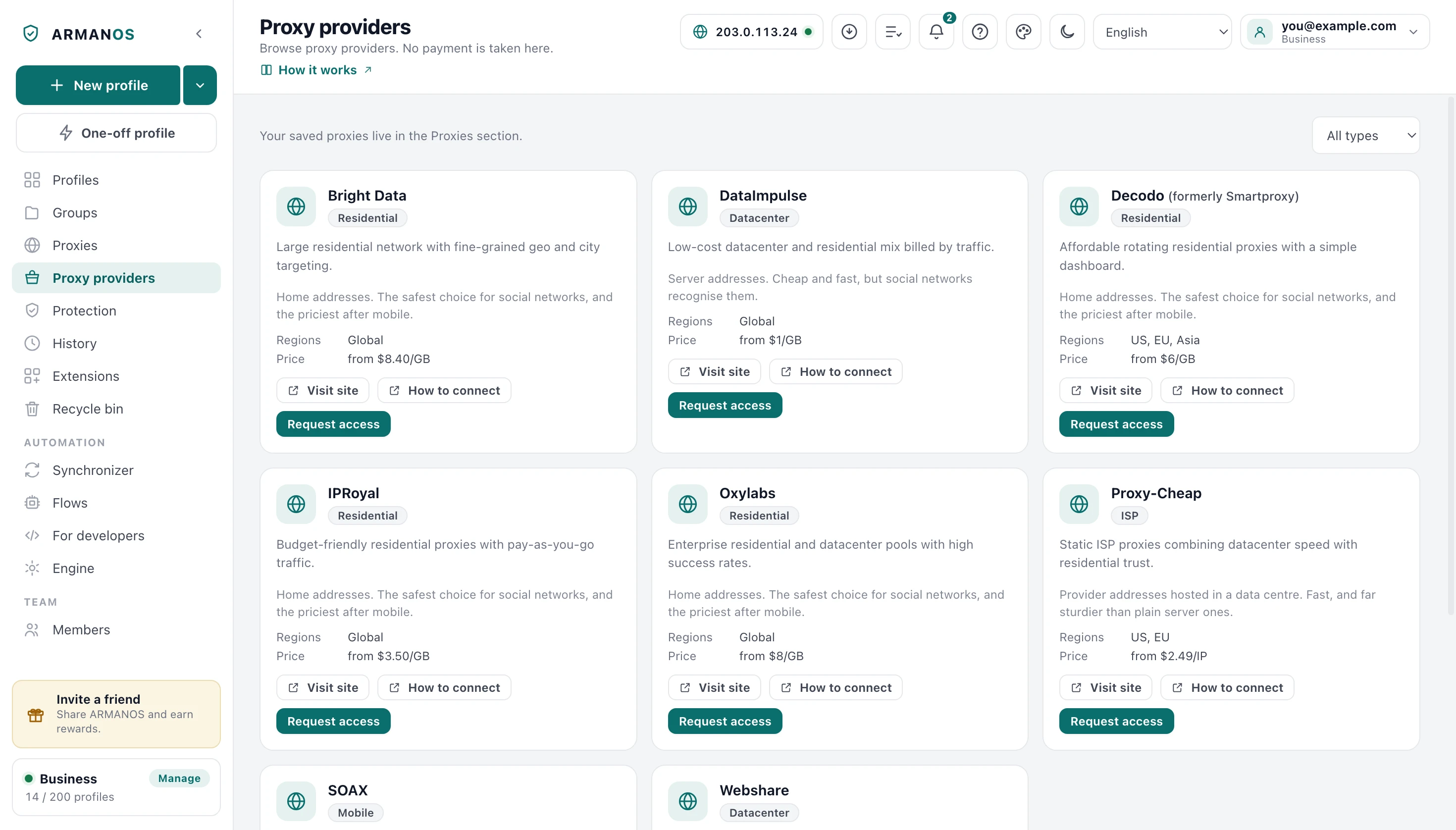
One card is one provider: its name, the type of address it sells, a short description and a line on what that type is good for. Regions and Price stand below them.
The price is a starting figure written into the program, not a live quote. The current price and the plans themselves are on the provider's own site.
Filtering by type
The picker above the cards offers All types, Residential, Datacenter, Mobile and ISP. The choice filters the cards and changes nothing else.
A card also says plainly what its type is good for: datacenter addresses, for one, are cheap and fast, but social networks recognise them.
Sending a request
The request window opens with the provider already filled in. Plan and Notes are free text, and both can stay empty.
- 1
Open Proxy providers
The item under Proxies in the left column.
- 2
Choose a type
The All types picker above the cards.
- 3
Press Request access
The button at the bottom right of a card.
- 4
Describe the plan you want
The Plan field in the window, for example the amount of traffic.
- 5
Press Send request
The button at the bottom of the same window.
What a request does
The request is saved in your account with the state waiting. No payment is taken, nothing is ordered from the provider, and the request itself sends nothing to them.
To buy access right now, press Visit site on the card. The provider's site opens in your usual browser, outside any profile.
A request is a note of interest
Your requests
Below the cards, Your requests lists what was sent: the provider, the plan, the date and the state. The states are waiting, in progress, delivered, declined and withdrawn.
Apart from withdrawn, a state is changed on the ARMANOS side by hand. When addresses are delivered, they land in the workspace proxy library, the row says how many arrived, and with the Manager role or higher your next sign-in, the next start of ARMANOS or Refresh from account on the Proxies screen, the empty one included, brings them to this computer.
Withdrawing a request
Withdraw stands on a row that is still waiting or in progress. After you confirm, it withdraws the request in the account, and the row stays in the list marked withdrawn on every computer.
A delivered, declined or withdrawn request has no Withdraw button, since there is nothing left to call off. If the request was already withdrawn from another computer, the window answers “This request was already withdrawn.” and shows the row with its mark.
Who can send a request
The provider cards come with the program and show without an account. The requests live in the account, so without a sign-in a line above the cards asks you to sign in.
The list belongs to the workspace, and everyone in it sees the same requests. Sending and withdrawing need the Manager role or higher, and a refusal is written under the fields of the request window.
What this does not do
- It does not sell proxies. A request records which provider you want, and buying happens on the provider's own site.
- It does not show live prices. The Price line is a starting figure kept in the program.
- It does not attach addresses to profiles. Delivered addresses wait in the proxy library until you pick them in a profile.
- It does not contact the provider. The request stays in your account and goes nowhere else.
Where this is decided
The claims that carry the most weight, with the stand that checks each of them.
- A request is saved as waiting and tied to a real provider, and a plain member cannot send one
- apps/server/test/proxy-orders.js
- The provider list reaches the account with the server itself, so Send request works on a fresh database
- apps/server/test/каталог-прокси-сам-посеян.js
- Withdraw withdraws the request in the account, and each state has its own label in all languages
- apps/desktop/test/состояния-заказа-от-сервера.js
- After Withdraw the row stays marked withdrawn, and Refresh from account sits on the empty Proxies screen for the roles the server gives the list to
- apps/desktop/test/магазин-прокси-слова-по-делу.js
- A server refusal on Send request and on Withdraw names the reason instead of asking you to retry
- apps/desktop/test/отказ-заявки-прокси-называет-причину.js
- Delivered addresses land in the workspace library and close the request by themselves
- apps/server/test/proxy-delivery.js
Questions
- Was I charged when I pressed Send request?
- No. The request is saved as waiting, and this screen takes no payment.
- How do I actually buy a proxy here?
- Press Visit site on the card and buy on the provider's own site. Then paste the list you receive on the Proxies screen with Paste a list.
- Send request shows an error.
- The refusal is written under the fields, for example no sign-in, a role below Manager, no connection or a provider that is not on the list requests are taken for. The request is not saved.
- Where do delivered proxies appear?
- In the workspace proxy library. The row of the request says how many arrived, and with the Manager role or higher your next sign-in, the next start of ARMANOS or Refresh from account on the Proxies screen brings them to this computer: with an empty list the button sits right on the empty screen.
- Why do I see requests I did not send?
- The list belongs to the workspace, so the requests of your colleagues appear there too.
Look at the list now
The free plan gives two profiles, with no time limit and no card.