Tej strony nie ma jeszcze w Twoim języku. Czytasz tekst angielski.
Knowledge base
Create your first profile
Open the new profile window
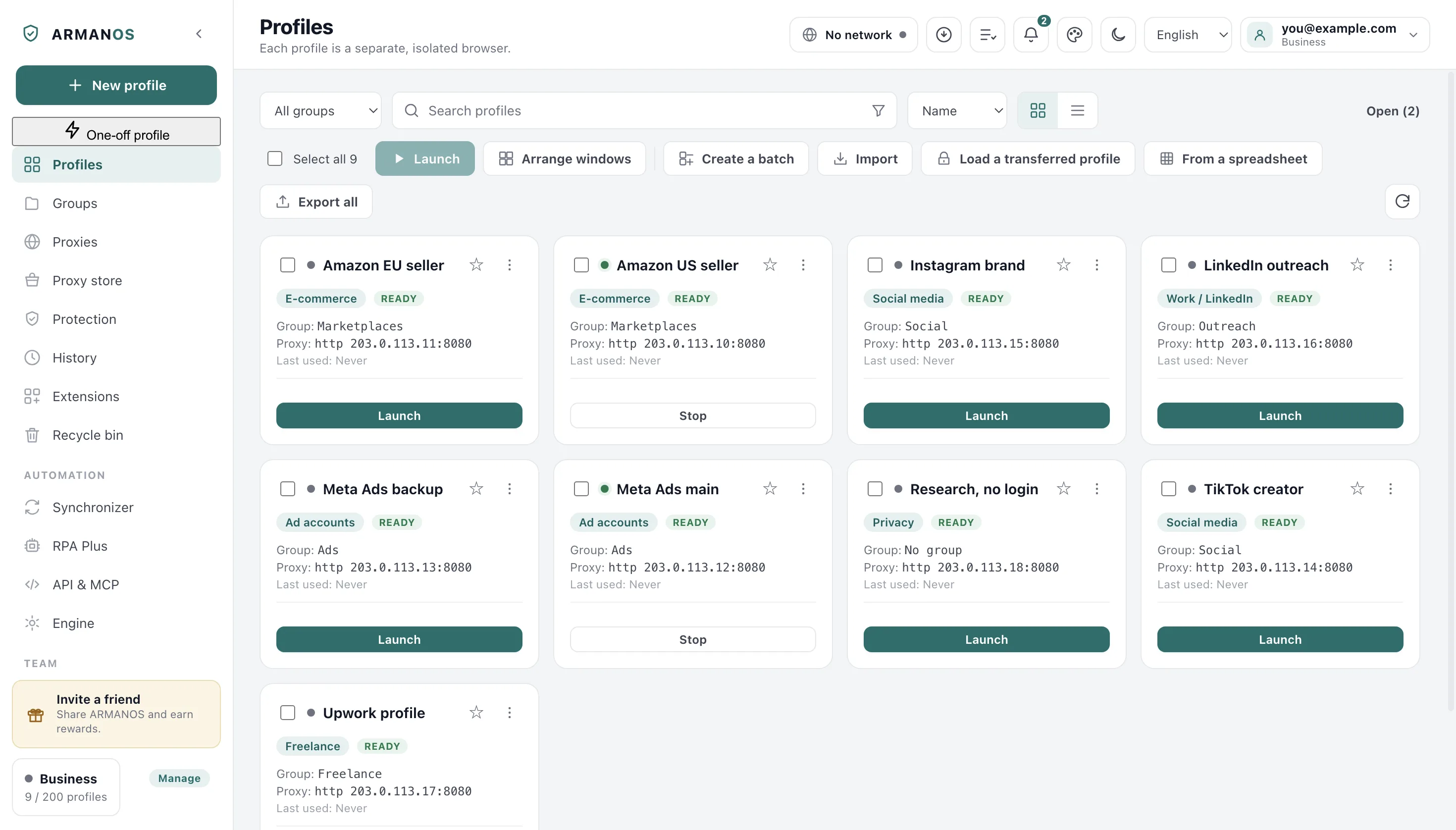
The Profiles tab is the first item in the left column, and New profile sits above it, at the very top of that column. The window opens empty and nothing is created until you press the button at the bottom.
- 1
Open the Profiles tab
The first item in the left column.
- 2
Press New profile
The button at the top of the left column.
- 3
Type a name
The name is for you: usually the account it belongs to.
Choose the scenario
Scenario sets the opening address, which tracker lists the profile blocks and whether links are cleaned of tracking tails. The window offers Privacy, E-commerce, Social media, Ad accounts and Freelance.
Pick the one your account belongs to: LinkedIn lives inside Social media and stands first on its list of platforms. It can be changed later in the Edit profile window.
Choose the fingerprint template
The template decides what kind of machine the profile describes: macOS, Windows, Linux or an Android phone or tablet. Everything else is generated from the template and from the profile's own number.
That is why the same profile shows the same machine on every launch.
Add a proxy before the first launch
Without a proxy the profile goes out from your own address, and that is the thing people regret latest. The proxy block sits at the bottom of the same window and takes an entry from the library or details typed in by hand.
Under the proxy sits the Location block: it decides what a site that asks for the position gets. A new profile has "Near the proxy address" selected there.
The exit country moves more than the address
Create it and open it
The profile appears in the list as a card. Launch opens a real browser window that belongs to that profile alone.
- 1
Press Create
The window closes and the card appears in the list.
- 2
Press Launch on the card
The browser opens in a window of its own.
- 3
Read the start page
It shows the exit address, the engine and the profile number.
What to check on the first run
The start page opens first and shows what a site would see for this profile. Its only outbound request is the address lookup, and that one goes through the profile's own proxy.
Test fingerprint in the right-click menu of the card runs the checks inside a real browser and reports how many passed.
What this does not do
- It does not sell you a proxy. A profile can be created without one and will then go out from your own address.
- It does not let you type the profile's number. The number is issued at creation and can only arrive with the profile from a file.
- It does not promise an account will behave. It gives the account a browser nothing else shares.
Where this is decided
Each step above is one place in the code and one stand.
- The fingerprint follows the profile number, so every launch repeats it
- apps/desktop/test/fingerprint-version.js
- The fingerprint card counts the proxy exactly as a launch does
- apps/desktop/test/fingerprint-card-matches.js
- The group chosen at creation really reaches the profile
- apps/desktop/test/группа-при-создании.js
- The opening address is checked at creation and not only on edit
- apps/desktop/test/profile-start-url.js
Questions
- My profile says Work / LinkedIn.
- A profile keeps the scenario it was made with, and the Edit profile window goes on showing that one while it is the chosen one. New profiles are offered Social media, which carries the same tracker lists and one more.
- Can I change the template later?
- Yes, in the same Edit profile window. The profile then describes a different machine, and the sites it was logged into will see that change.
- What if the plan limit is reached?
- The New profile button says so and offers the plan screen. Profiles sitting in the recycle bin are not counted.
- Do I have to give it a name?
- No, an unnamed one is called New profile. A hundred of those are a hundred rows you cannot tell apart.
- Can I make fifty at once?
- Yes. Create a batch builds them from one template, and From a spreadsheet builds them from your own table.
Make the first one now
The free plan gives two profiles, with no time limit and no card.