Trang này chưa có bằng ngôn ngữ của bạn. Bạn đang đọc bản tiếng Anh.
Access is paused for now
Knowledge base
Install ARMANOS and sign in
Pick the build for your system
The download page reads your system and offers the matching file. macOS 13 and later on Apple Silicon or Intel, Windows 10 and 11 in 64 bit, Ubuntu 22.04 and later as an AppImage.
- 1
Open the download page
Download in the site header.
- 2
Check the build offered
On a Mac choose Apple Silicon or Intel under Choose a build.
- 3
Run the installer
The file size is printed next to the button.
When the system blocks the first launch
Until the app is notarized macOS stops the first launch. Open System Settings, go to Privacy & Security and click Open Anyway.
On Windows SmartScreen may warn about an unsigned installer: click More info and then Run anyway.
Sign in to your account
Signing in unlocks your plan and the profiles issued to it. Without it the app runs in the basic mode on the free plan. If signing in fails, the Contact support link in the sign-in window opens a message to support with the Account topic and your email, and your password never goes into it.
The account email is changed on the Account screen with the Change email button: the new email twice, the password and the 2FA code if it is on. It can be changed once in 7 days, and the email of a team login is changed by its team owner.
- 1
Open the account menu
The chip with your name in the top right corner.
- 2
Choose Account settings
It opens the Account screen.
- 3
Press Sign in
Email and password, then the six-digit code if you turned two-factor on.
Several accounts on one computer
The account menu (the chip with your name in the top right corner) has the list Accounts on this computer: the open one is marked now, a signed-out one says sign-in needed. Pressing another account switches the app: it restarts in that account within 2-3 seconds. The password and the 2FA code are not asked while the account's sign-in on this computer is alive (30 days).
Add account in the same menu (one computer keeps up to 10 accounts) opens the sign-in window first, and the app switches only after a successful sign-in. If profiles are open, a scenario is running or schedules are on, the app asks first: the profiles close, and the schedules of the previous account do not run while another one is open. In the sign-in window the line Or sign in as: opens an account of this computer with one button.
Each account on this computer has its own profiles, folders, proxies, scenarios, schedules and folder for sessions, and another account does not see them. Shared by all: the window language, the engine and kernel choice, and the local API with its token and port. A local API script works with the open account, and for a profile of another account or of another workspace of this account it gets profile_not_found with the inOtherAccount mark.
The Remove from the list cross next to an account that is not open signs it out on this computer (the device seat is given back, the sign-in key is revoked) and removes its records. Profiles that live only on this computer and files written by its scenarios are never removed without your consent.
Sessions of its profiles can be erased or kept: kept ones are picked up on the next sign-in, and the Storage on disk card shows them as data of profiles without an account. Sessions of profiles with a password stay whatever you choose, and they can be erased only with the password: add the account again and delete the profile.
Signing in from the site
If you registered on the site it can hand the session straight to the app through a one-time link. The code inside it lives minutes and works once.
When the link has expired the app says so and asks for your email and password instead. If the team owner requires two-step sign-in and yours is off, the app opens its setup screen after you sign in: a QR code and a key for your authenticator app, the code from it and your password.
Install the browser engine
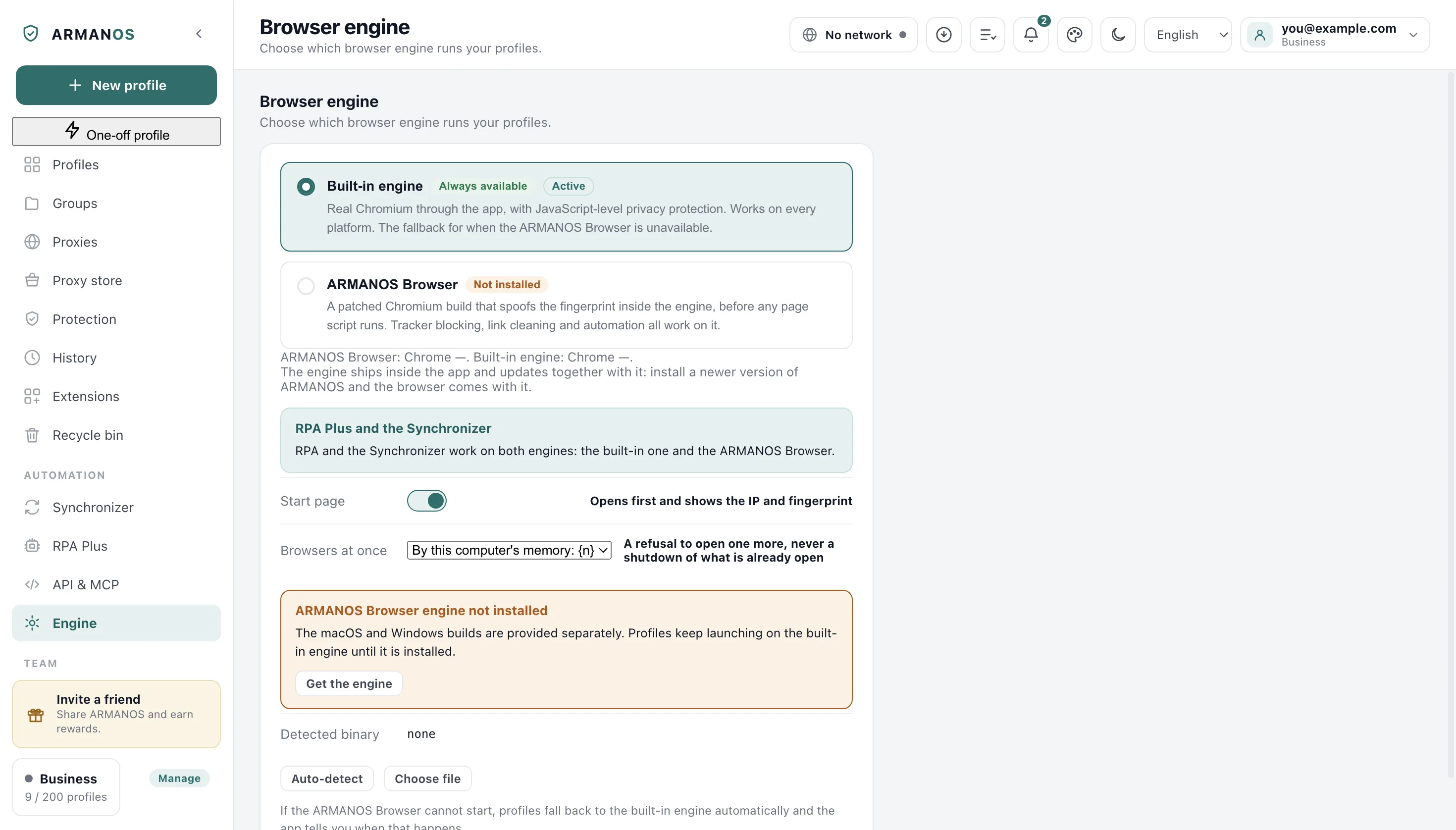
The installer carries ARMANOS Browser for your own system, so it is already on disk. If that copy is missing or unreadable, profiles keep opening on the built-in engine and the app says so rather than pretending.
- 1
Open the Engine tab
In the left column under Automation.
- 2
Press Get the engine
It opens the download page in your own browser.
- 3
Press Auto-detect afterwards
Or Choose file to point at the program yourself.
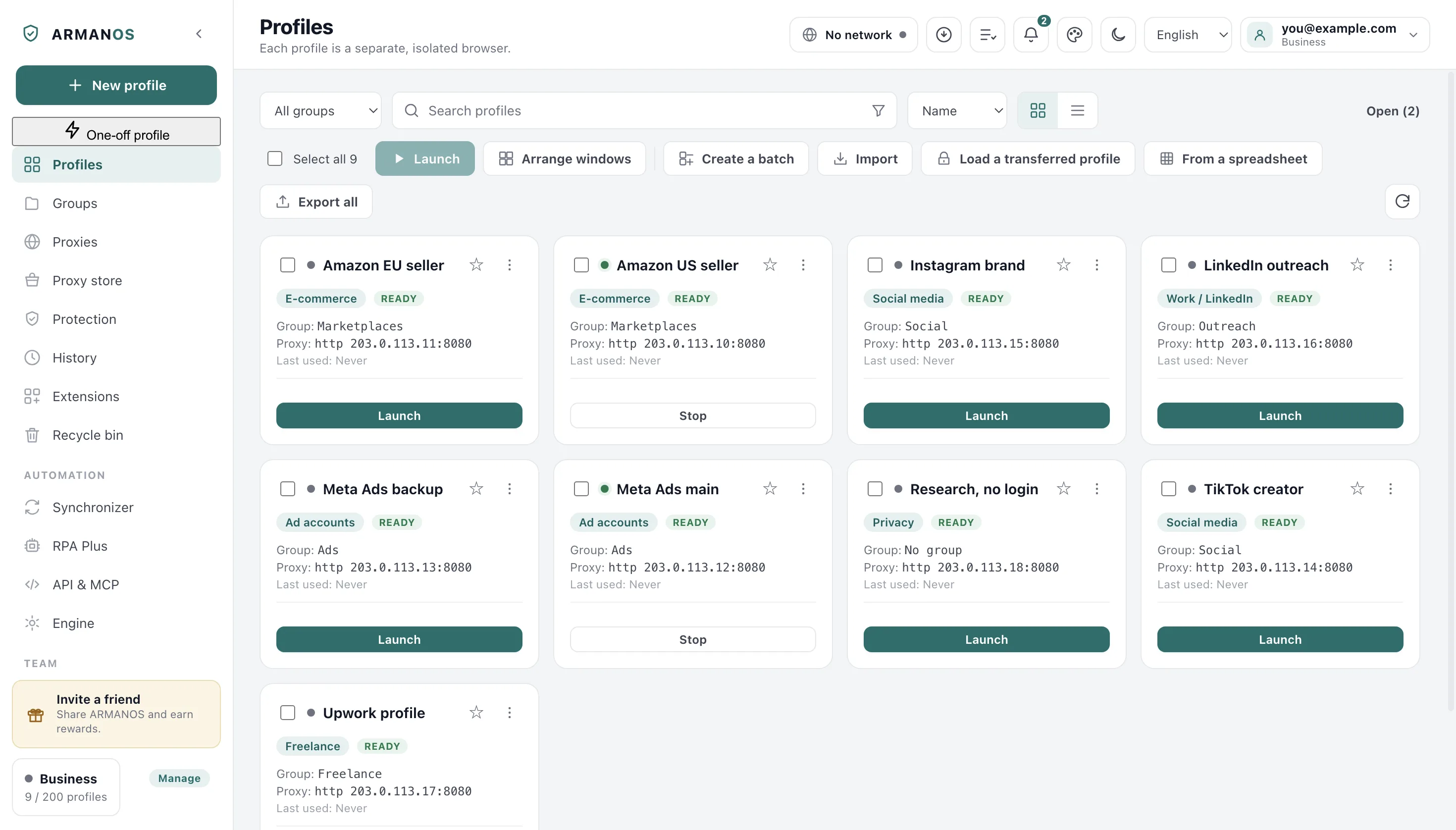
First steps inside the app
A strip above the profile list counts five steps: account, first profile, proxy, first launch, first flow. Each one is ticked by the state of the app rather than by a button you press.
The strip disappears once all five are done.
A tick you give yourself teaches nothing
What this does not do
- It does not create the account for you. That happens on the site or from the sign-in window.
- It does not fetch a newer browser engine by itself. The one it carries is the one it starts with.
- It does not add machines beyond your plan. Device slots are counted, and the Account screen shows how many are in use.
Where this is decided
Each step above is one place in the code and one stand.
- The sign-in link from the site is one-time and short lived
- apps/desktop/test/передача-входа-из-сайта.js
- The first-steps strip is computed from state and not from clicks
- apps/desktop/test/first-steps.js
- The installer never ships without its engine folder filled
- apps/desktop/test/установщик-без-движка.js
- Everything that launches the engine looks for it in one place
- apps/desktop/test/путь-движка-везде-общий.js
Questions
- Can I try it without an account?
- Yes. Without signing in the app runs in the basic mode with the free plan of two profiles.
- What happens on a second computer?
- Sign in there with the same account and the profiles arrive. What keeps them logged in does not travel by itself: that is a separate move.
- The engine is installed but profiles still open on the built-in one.
- Open the Engine tab and read the detected binary row. An engine you chose but the app cannot find is named as missing, not swapped for another.
- Does signing out remove anything?
- No. It frees the device slot and drops you to the basic mode; the profiles on the disk stay where they are.
- The app says You were signed out on this computer.
- The sign-in here was ended from somewhere else: from another device, by a password change, by turning on two-step sign-in or by the team, and the window names which. Press Sign in and sign in to the same account: the profiles open again. You were signed out on this computer explains every reason.
Next to this
Start with one profile
The free plan gives two profiles, with no time limit and no card.